Stop Freezing & Delay: Car Parking Multiplayer Lag Fix Guide
To fix lag in Car Parking Multiplayer, start with the fastest wins: close background apps, clear the game’s cache, lower graphics settings, and check your internet connection. If lag persists, work through device-level fixes like disabling animations, using a game booster, and managing device temperature.
Lag is every gamer’s worst enemy — delayed controls, freezing screens, and slow reactions at exactly the wrong moment. This 2026 guide covers every practical fix, starting with the quickest wins before moving into deeper device and network-level solutions.
What Causes Lag in Car Parking Multiplayer?
Lag usually comes down to a delay in communication between your device and the game server. Common causes include:
- Weak or unstable internet connection
- Low device performance (CPU/GPU limits)
- Graphics settings set beyond your device’s capabilities
- Cluttered cache or low storage
- Background apps are consuming resources
- Device overheating
- Game server or ISP issues
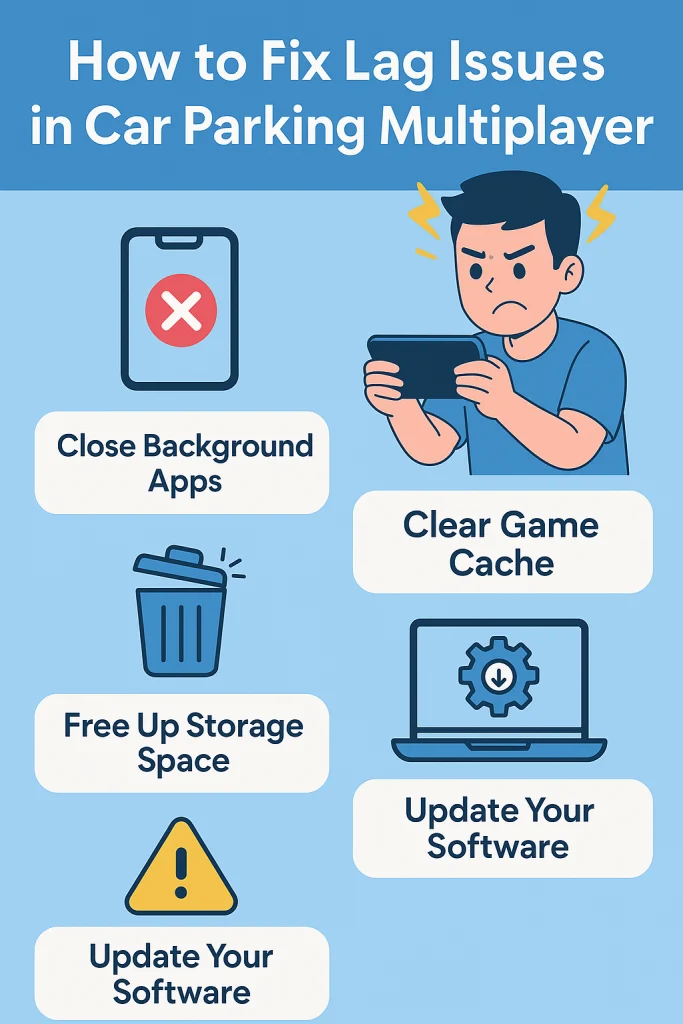
How to fix lag issues in Car Parking Multiplayer?
1. Close Background Apps
Running apps in the background drains RAM, CPU, and battery. Close everything unnecessary before launching the game.
Pro tip: Use your phone’s built-in “Clear All” or “Close All” option right before opening Car Parking Multiplayer.
2. Clear Cache & Free Storage
- Go to Settings > Apps > Car Parking Multiplayer > Storage > Clear Cache
- Maintain at least 4–6GB of free space for smooth gameplay.
👉 Think of it as decluttering your room—more free space, better performance.
3. Disable Animations
Animations consume extra processing power. Reducing or disabling them makes your device snappier.
- Android: Enable Developer Options → Set animation scale values to 0.5x or Off.
- iOS: Settings > Accessibility > Motion > Reduce Motion.
4. Use a Game Booster
Game booster apps like Game Booster 4x Faster or built-in options on Xiaomi, Samsung, or OnePlus can allocate more RAM to your game.
5. Update Software & Game Version
- Always keep your OS updated.
- Update the Car Parking Multiplayer APK/game version to the latest release for bug fixes and optimizations.
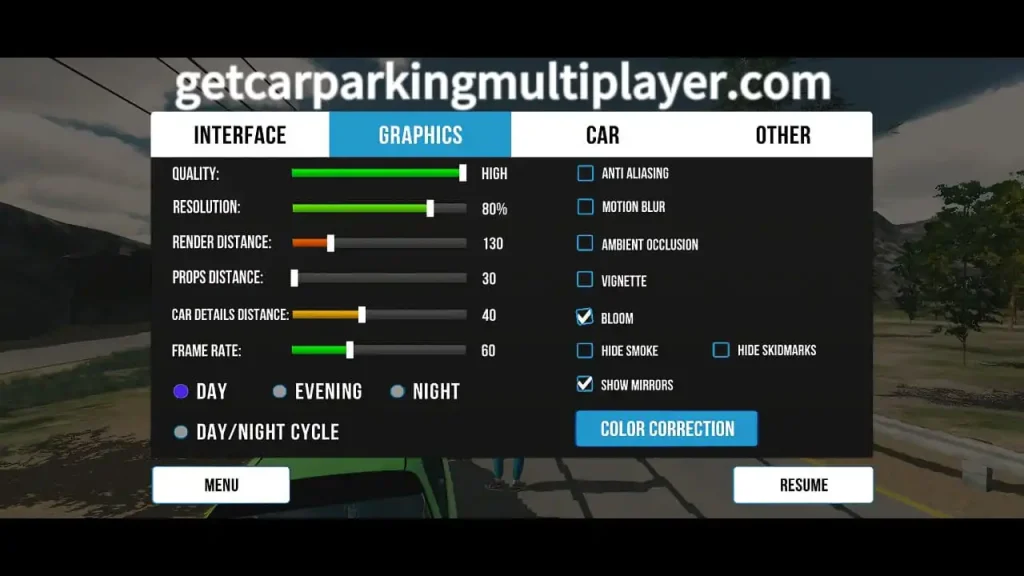
6. Adjust Graphics Settings
Lowering graphics is one of the most effective ways to reduce lag:
- Reduce resolution
- Lower shadow & texture quality
- Disable reflections & effects
- Set graphics to Medium or Low
👉 This improves frame rate, reduces heating, and ensures stable gameplay.
7. Improve Internet Connection
Lag in multiplayer often comes from poor network stability. Try:
- Restarting your router
- Using 5GHz Wi-Fi instead of 2.4GHz
- Reducing connected devices
- Switching to a wired connection (for PC emulators)
- Contacting your ISP for consistent ping
👉 “A strong connection is also essential for smooth communication. Learn how to use Voice Chat in Car Parking Multiplayer.”
8. Monitor FPS (Frames Per Second)
FPS defines how smooth the game feels:
- 30 FPS = minimum acceptable
- 60 FPS = ideal for smooth gameplay
- 120 FPS+ = best for competitive, high-end devices
👉 Enable in-game FPS counter (if available) or use third-party FPS monitor apps.
9. Play in a Private Room
Public servers with too many players can lag. Create a Private Room and invite only friends. This reduces server load and ensures smoother sessions.
10. Reduce Device Temperature
Overheating throttles CPU/GPU speed. To fix:
- Avoid playing while charging
- Remove phone case for better airflow
- Take breaks to cool down the device
11. Check External Factors
Sometimes, the issue isn’t your device:
- Game server downtime
- ISP issues
- Temporary bugs after updates
Check official social channels for announcements.
12. Contact Support
If lag persists after all fixes:
- Use In-Game Support
- Visit the Official Website
- Reach out via Social Media or Email
FAQs
Conclusion
IFixing lag in Car Parking Multiplayer usually comes down to a handful of quick wins — closing background apps, clearing cache, and adjusting graphics settings resolve most cases fast. For persistent issues, working through network, device-temperature, and server-side factors covers nearly everything else. If lag still won’t go away after all of this, it’s worth reaching out to support directly, since the remaining cause may be server-side rather than something fixable on your end.
Related: How to Fix Black Screen in Car Parking Multiplayer (2026)
Login problems? See: Car Parking Multiplayer Login Failed: 7 Fixes (2026)