Car Parking Multiplayer Voice Chat Explained: Full Guide
To enable voice chat in Car Parking Multiplayer, go to Settings → Audio/Voice Chat and toggle it on, allow microphone access, then join a multiplayer server and press and hold the microphone icon to talk. It’s available in most public and private multiplayer servers, and works especially well for roleplay and coordinated racing.
Why Voice Chat is Important in CPM
Many players stick to text chat and miss out on a lot of what makes multiplayer sessions fun. Voice chat adds:
- Real-time communication — talk to friends and teammates instantly instead of typing mid-drive.
- Better roleplay — a police officer giving commands, or a taxi driver asking for directions, feels far more immersive spoken than typed.
- Real teamwork in races — call out warnings or plan strategy on the fly.
- Stronger friendships — talking naturally builds connection faster than text ever does.
In short, voice chat is what turns CPM from a driving simulator into something closer to a shared, living community.
How to Enable and Set Up Voice Chat?
Step 1: Enable Voice Chat
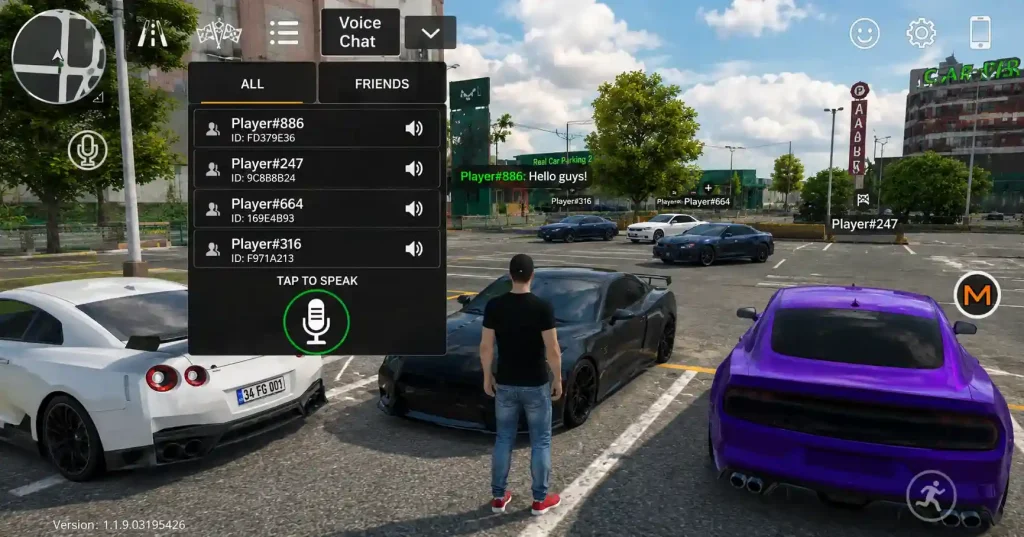
To use voice chat, you first need to enable it in the game settings. Here’s how:
- Open Car Parking Multiplayer.
- Go to Settings (gear icon on the main screen).
- Find the Audio or Voice Chat option.
- Toggle Voice Chat ON.
- Allow microphone access if your phone asks.
👉 Tip: Always use a good-quality microphone for clear sound, especially if you’re playing with friends.
Step 2: Join a Multiplayer Server
Voice chat only works in Multiplayer Mode:
- Go to the Multiplayer menu.
- Pick a public or private server.
- Confirm the server supports voice chat (most do).
- Press and hold the microphone button on-screen to talk.
Pro tip: If you’re roleplaying, join dedicated RP servers, where players actually expect and use voice chat regularly.
Step 3: Adjust Voice Chat Settings
SIf audio sounds off, tune these:
- Microphone sensitivity — clear but not distorted.
- Volume balance — lower background game sound if it’s drowning out voices.
- Push-to-talk vs. open mic — push-to-talk works better in noisy environments; open mic is more natural in quiet settings or with people you know well.
Pro tip: If other players report an echo, switch to headphones instead of your phone’s speaker.
Step 4: Use Voice Chat for Roleplay
A few examples of how it elevates roleplay:
- Police officer: “Pull over your car now!”
- Taxi driver: “Where do you want to go today?”
- Street racer: “Get ready — 3, 2, 1, go!”
- Friends: just casual chatting while driving around.
Staying in character with your actual voice makes sessions feel real in a way text chat can’t quite match.
Step 5: Respect Voice Chat Etiquette
To keep sessions fun for everyone:
- Don’t spam or shout unnecessarily.
- Avoid offensive language — keep it friendly.
- Listen as much as you talk.
- Use the mute option if someone’s disrupting your session.
Does Voice Chat Work Across Platforms?
Since CPM supports cross-play between mobile and PC (via emulator), voice chat generally works the same way — players on different platforms in the same multiplayer room can hear each other, as long as both have voice chat enabled and microphone access allowed on their respective device.
Voice Chat and Safety
Voice chat means talking with players you don’t know, which is worth being thoughtful about, especially for younger players. A few good habits:
- Use the mute/report option immediately if someone is inappropriate.
- Avoid sharing personal information over voice chat with strangers.
- Consider sticking to private servers with friends if you’d rather avoid open voice chat with the public.
If you’re a parent evaluating whether CPM is appropriate for your child, our guide on whether Car Parking Multiplayer is safe for kids covers this in more depth, including voice chat considerations specifically.
Data and Battery Usage
Voice chat adds ongoing data usage during multiplayer sessions, on top of what the game already uses — worth keeping in mind on limited mobile data plans. It also increases battery drain somewhat compared to playing with voice chat off, since your microphone and audio processing stay active throughout the session.
Common Problems and Fixes
No sound?
- Check microphone permission in your phone’s settings.
- Confirm your in-game volume is turned up.
Other players can’t hear you?
- Test your mic in another app to rule out a hardware issue.
- Rejoin the server — voice connections occasionally need a fresh handshake.
Laggy or choppy voice?
- Switch to a stronger Wi-Fi or 4G/5G connection.
- Avoid heavily crowded servers, where voice traffic can bottleneck.
Final Thoughts
Car Parking Multiplayer’s voice chat is more than a feature — it’s what turns solo driving into a genuinely shared experience. Whether you’re coordinating a police chase, roleplaying a taxi run, or just chatting with friends while cruising the map, enabling it is one of the simplest ways to get more out of the game. Turn it on, join a server, and see how differently CPM feels with real conversation instead of just typed chat.
Frequently Aaked Question
1. Can you disable voice chat if you don’t want to use it?
Yes — it’s an optional toggle in Settings, and you can also mute individual players without leaving the server.
2. Is voice chat safe to use with strangers?
Use the same caution you would in any online space — mute or report inappropriate behavior, avoid sharing personal details, and consider private servers if you’d rather limit who you’re talking to.
3. Can you mute specific players without leaving the server?
Yes — the mute option in settings lets you silence individual players while staying in the session.
4. Is voice chat available in single-player mode?
No — voice chat requires Multiplayer Mode, since it’s built around communicating with other real players.