How to Use a Drone in Car Parking Multiplayer: Latest Guide
Quick Answer: To use the drone in Car Parking Multiplayer, enter Free Roam or Multiplayer mode, open the camera settings menu, and select the drone icon to detach your camera from the car.
Use the on-screen joystick to fly freely in any direction. The drone in car parking multiplayer is a free, built-in feature. It needs no purchase and no unlock, and it is best used for cinematic shots, exploring hidden areas, and recording multiplayer moments.
What You Need Before You Start
- The drone camera is available in the base game. Before using the drone in car parking multiplayer, note that it is best in Free Roam and Multiplayer modes, and limited in structured Parking Mode challenges, where fixed camera angles are often part of the challenge design.
- A stable connection helps if you are using it during online multiplayer sessions.
- Menu icon placement can vary slightly by device and app version, so look for the camera icon first if the drone icon is not immediately visible.
What Is the Drone in Car Parking Multiplayer?
The drone in car parking multiplayer lets you detach the camera from your car and fly it around freely. Instead of being locked into a single driving view, you can explore the environment as if you were flying a real drone.
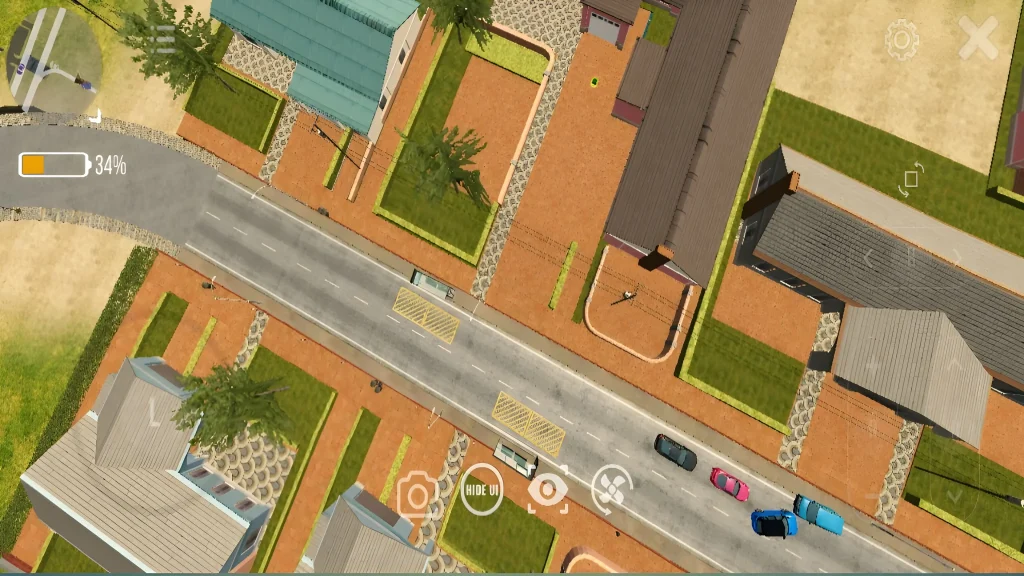
That freedom is the whole point. Driving cameras follow the car; the drone camera follows your curiosity, which is why it suits content creation and exploration far better than racing.
How to Activate the Drone
- Launch Car Parking Multiplayer and enter Free Roam or Multiplayer mode.
- Open the camera settings menu, usually accessed through the on-screen camera icon during gameplay.
- Select the drone icon to detach the camera from your vehicle.
- Use the on-screen joystick or directional controls to fly the camera freely; altitude and rotation controls usually sit alongside the movement joystick.
- To return, tap the camera or exit icon again to go back to your normal driving view.
If the camera does not return, exit the drone view and re-enter it, then tap the camera or exit icon again.
Drone Availability by Game Mode
| Mode | Drone Available | Notes |
|---|---|---|
| Free Roam | Yes | Best mode for full drone exploration |
| Multiplayer | Yes | Great for recording group events and races |
| Parking Mode (challenges) | Limited | Fixed camera angles are often part of the challenge |
| Police Mode | Yes | Useful for recording chases from above |
Availability can vary by version and server, so treat this table as the general pattern, not a guarantee for every challenge or event.
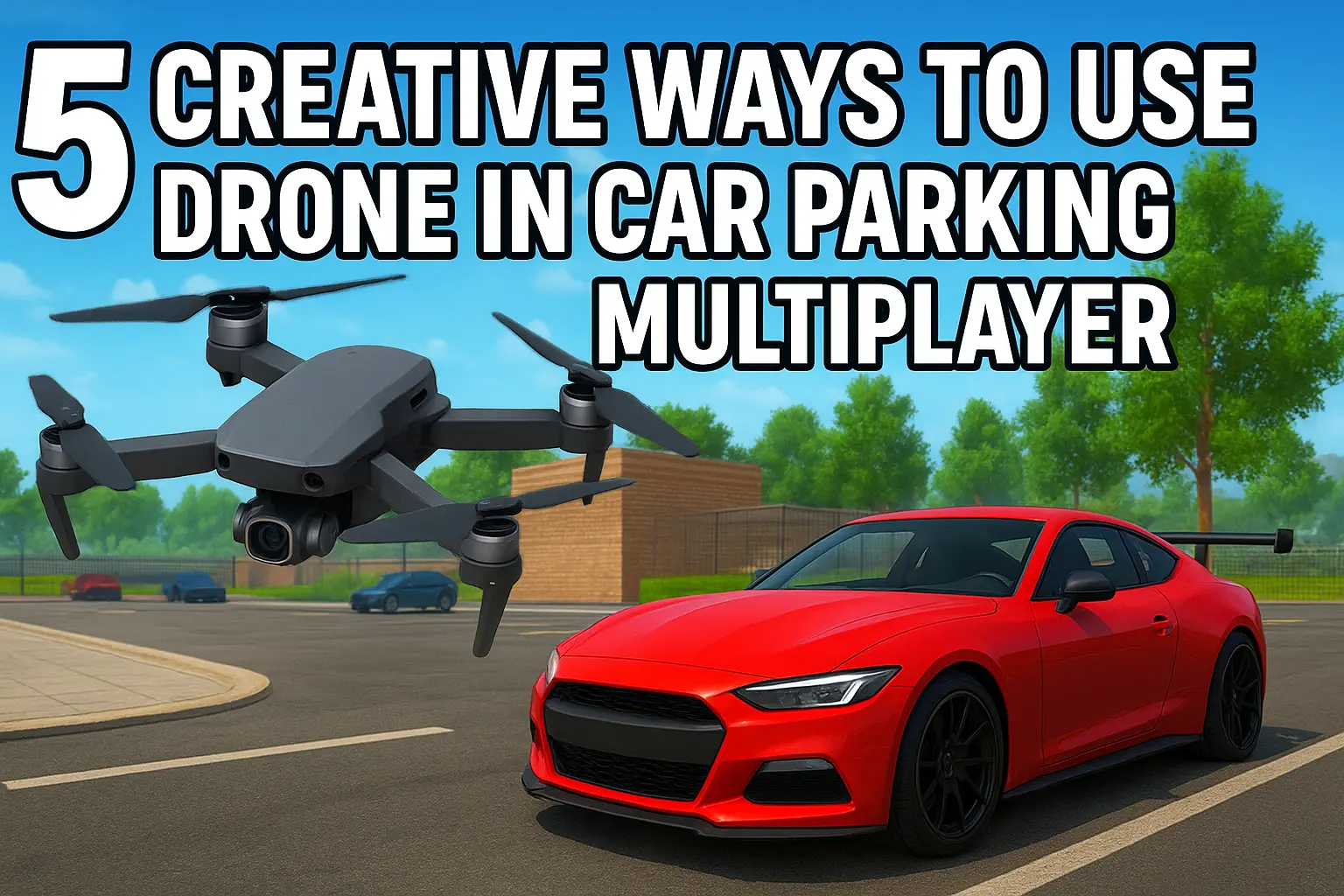
5 Creative Ways to Use Drones in Car Parking Multiplayer
1. Capture Cinematic Car Videos
Capture cinematic car videos by flying slow, low passes around your car instead of filming from the driver’s seat. Smooth, slow movement looks far better than fast, jerky flying.
2. Explore Hidden Locations on the Map
Explore hidden locations on the map from above, including spots that are hard to reach by car. The drone is also how many players find secret places worth driving to later, including gift box locations.
3. Perfect Your Drifting Shots
Perfect your drifting shots by hovering above a corner and filming the whole drift line. A high, steady angle shows the full run in a way a chase camera cannot.
4. Make Multiplayer Events More Fun
Make multiplayer events more fun by filming group meets, races and roleplay scenes from above. One player filming while others drive gives every event a highlight reel.
5. Create Your Own Storytelling Videos
Create your own storytelling videos by combining drone shots with driving footage. A short aerial establishing shot at the start makes even a simple video feel planned.
Drone Camera vs. Normal Camera
The normal camera is easy and stable, and it is ideal for active driving and fast races. Its movement is limited to fixed angles around the car.
The drone camera gives full 360-degree freedom, but it takes a little practice. It suits content creation and exploration, and it is not recommended during fast races, where you need to see the road.
Tips for Better Drone Shots
- Fly slowly. Fast drone movement is the most common reason drone footage looks shaky and unusable.
- For the drone in car parking multiplayer, plan your shot before you move: pick a start point, an end point, and one smooth path between them.
- Use the drone to scout first, then film. A quick scouting pass tells you where the light, the background and the obstacles are, so the real shot is clean.
Troubleshooting
- If the drone icon is missing, check that you are in Free Roam or Multiplayer mode, not a structured challenge with fixed cameras.
- If the camera resets to your car, you have likely flown beyond the loaded map area; fly closer to your vehicle.
- If controls feel unresponsive, exit the drone view and re-enter it. Persistent problems after an update usually trace to a changed menu layout, so check the camera menu again rather than assuming the feature was removed.
Conclusion
The drone in car parking multiplayer is one of CPM’s most useful free tools, and most players never touch it. Learn the camera menu once, practise slow flying, and it will change how your screenshots and videos look.
Frequently Asked Questions (FAQs)
Does the drone cost any in-game currency?
No. The drone camera is a free, built-in feature and does not require any purchase or unlock.
Is there a range or altitude limit?
Yes. The drone has a practical flight range tied to the loaded map area. Flying too far from your car may cause the camera to reset back to the vehicle.
Can other players see my drone in multiplayer?
No. The drone is a personal camera view only; it does not appear as an object to other players in your session.
Does the drone work on both Android and iOS?
Yes. The feature is available on both platforms, though exact menu icon placement may vary slightly by device and app version.
Can I use the drone during parking challenges?
Only in a limited way. Structured parking challenges often use fixed camera angles as part of the challenge design, so the drone is best used in Free Roam and Multiplayer.
Why does my drone camera keep resetting?
That usually happens when you fly beyond the loaded map area. Fly closer to your car, and the camera should stay where you put it.