Play Car Parking Multiplayer on PC: Complete Setup Guide
Quick Answer: To play Car Parking Multiplayer on PC, install an Android emulator such as BlueStacks, GameLoop or MEmu Play, sign in with a Google account, and install Car Parking Multiplayer from the Play Store inside the emulator. This guide covers CPM 1, the original game.
If you want an official PC version, that is a different game: Car Parking Multiplayer 2 is free on Steam in Early Access since 8 October 2026. See the CPM 2 for PC guide linked below before you install anything.
Why Play on PC
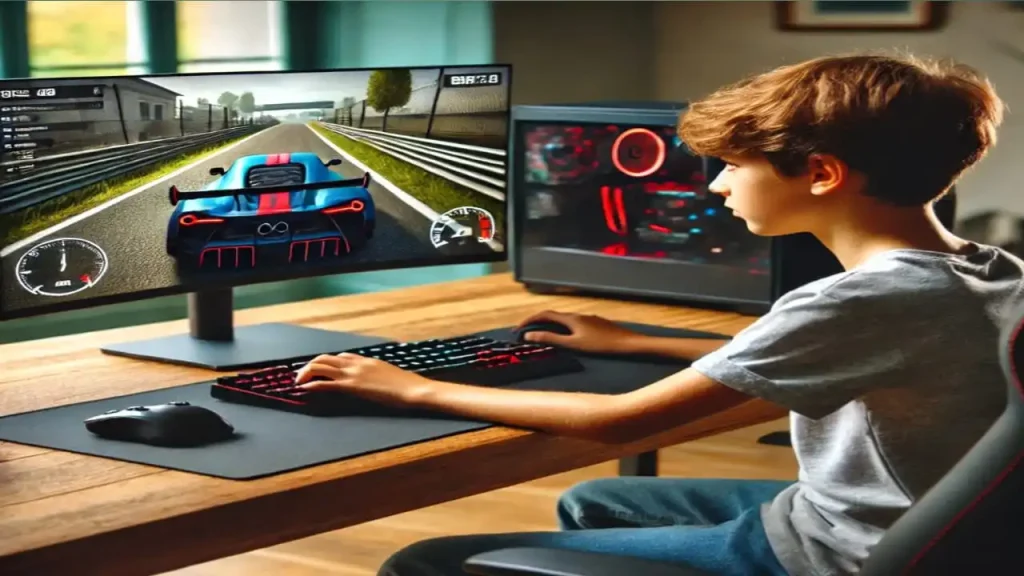
A bigger display makes open-world maps easier to read, and keyboard controls give more precise steering than a touchscreen. PCs also handle longer sessions without battery worries.
The trade-off is honest: this is still the mobile game running inside an emulator. It is not a native PC port, so performance depends on your PC and the emulator you pick.
That is the reality of playing car parking multiplayer on pc, and this guide keeps it in view throughout.
Step-by-Step Setup
- Choose an emulator from the comparison below and download it only from that emulator’s official website — never from a random APK site.
- Install the emulator, sign in with a Google account, and open the Play Store inside it.
- Search for “Car Parking Multiplayer” and install it like any other Android app.
- Launch the game, sign in to your CPM account if you want your progress, and set up your controls before joining multiplayer.
Key mapping is where most new PC players lose time, so do it before your first race.
For car parking multiplayer on pc, controls are the difference between a smooth session and a frustrating one.
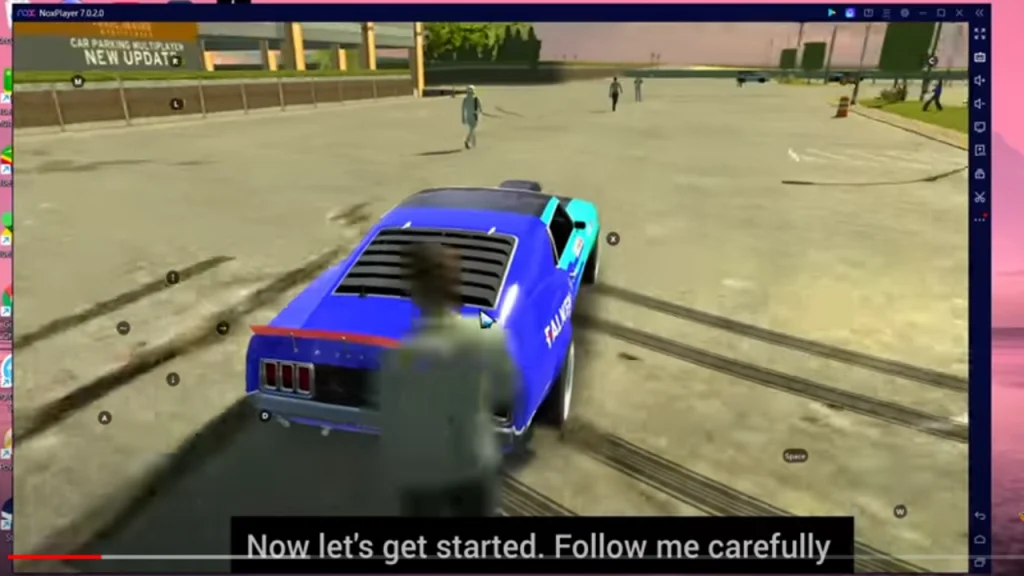
Emulator Comparison
BlueStacks suits most players: strong overall performance, good key mapping, and multi-instance support for running two accounts. It needs the most resources of the three, so it fits mid-range and better PCs.
GameLoop has a simpler interface and lighter feel on some systems, but it is Windows-only and can use more system resources than expected during long sessions.
MEmu Play is the best pick for lower-end PCs, with flexible control customization. Its interface feels less polished than BlueStacks, but it runs well on modest hardware.
For most players in 2026, BlueStacks is still the default recommendation, with MEmu Play as the low-end alternative. Pick GameLoop if you already use it for other Android games and like its interface.
| Emulator | Best For | Cost | macOS Support | Notes |
|---|---|---|---|---|
| BlueStacks | Overall performance, key mapping, multi-instance | Free | Yes | Widely used, fast boot times |
| GameLoop | Simple UI, running multiple Android versions | Free | No (Windows only) | Uses more system resources |
| MEmu Play | Control customization, lower-end PCs | Free | No (Windows only) | Originally optimized for Tencent titles |
System Requirements
BlueStacks needs at least 4 GB of RAM, with 8 GB recommended, and around 5 GB of free storage. GameLoop needs at least 4 GB of RAM and about 1 GB free.
MEmu Play can start on 2 GB of RAM, but 4 GB or more is needed for smooth play, with 8 GB recommended.
All three list Windows 7 as a minimum, but for a smooth 2026 experience, use Windows 10 or 11 with virtualization enabled in your BIOS. Without virtualization enabled, every emulator will feel slow, no matter how strong your PC is.
| Emulator | Minimum RAM | Recommended RAM | Minimum OS | Storage Needed |
|---|---|---|---|---|
| BlueStacks | 4GB | 8GB | Windows 7 | 5GB free |
| GameLoop | 4GB | 4GB+ | Windows 7 | 1GB free |
| MEmu Play | 2GB (4GB for smooth play) | 8GB | Windows 7 | 2–5GB free |
Controls Setup
Steering works with WASD or the arrow keys, the handbrake is the spacebar, gear up is Shift, gear down is Ctrl, camera change is C, and the horn is H. These are starting defaults, not rules.
Spend five minutes remapping keys to your own layout before multiplayer. A layout that feels natural matters more than copying a streamer’s setup exactly.
Good controls make car parking multiplayer on pc feel close to native, even though it runs in an emulator.
| Action | Key |
|---|---|
| Steering | WASD or Arrow Keys |
| Handbrake | Spacebar |
| Gear Up | Shift |
| Gear Down | Ctrl |
| Camera Change | C |
| Horn | H |
Can PC and Mobile Players Play Together?
Yes. Emulator players join the same CPM 1 servers as mobile players, because the game itself is the same Android game. Your device does not split the player base. The practical difference is controls, not access. A keyboard player and a touchscreen player can race, trade and join the same rooms.
Is Playing Through an Emulator Safe?
Yes, as long as you install the game through the emulator’s official Play Store and download the emulator itself from its official website. Third-party APK files are where the risk lives, not in emulation itself.
Never install a “PC version” EXE of CPM 1 from a random site. There is no official CPM 1 PC download, and fake EXE files are a known malware channel.
CPM 2 on Steam: The Official PC Option
This is the part the old post missed. Car Parking Multiplayer 2 launched free in Steam Early Access on 8 October 2026, with native keyboard, mouse, gamepad and racing-wheel support, plus cross-platform multiplayer and progression with mobile.
If you own a PC and want the newest game with official support, play CPM 2 on Steam instead of emulating CPM 1.
For players deciding on car parking multiplayer on pc, that choice — emulator for CPM 1, Steam for CPM 2 — is the whole decision.
If you want the original CPM 1, its cars, and its community, use the emulator route in this guide. For the full setup walkthrough, see our Car Parking Multiplayer 2 for PC guide.
Additional Tips
Use multi-instance mode only if your PC has the RAM for it; two instances on a weak PC will lag both games. Raise graphics gradually rather than maxing everything at once.
When you play car parking multiplayer on pc, small settings changes beat big hardware upgrades most of the time.
If the game stutters, lower the emulator’s resolution and frame rate first, then check that virtualization is enabled. Most “lag” complaints trace back to one of those two settings.
Conclusion
Car Parking Multiplayer on PC works well through an emulator, and BlueStacks or MEmu Play will cover almost every player. Just keep the two games straight: CPM 1 on PC means an emulator, while CPM 2 on PC means Steam.
Is it safe to play Car Parking Multiplayer through an emulator?
Yes, as long as you install it through the emulator’s official Play Store rather than downloading APK files from third-party sites.
Which emulator is best for a low-end PC?
MEmu Play and GameLoop both have lighter minimum requirements than BlueStacks, making them better choices for older hardware.
Is there an official PC version of Car Parking Multiplayer?
For the original game, no — CPM 1 is built for Android and iOS, so playing it on PC requires an Android emulator. But its sequel, Car Parking Multiplayer 2, is officially free on Steam in Early Access since 8 October 2026.
Does playing on PC cost anything extra?
No. BlueStacks, GameLoop and MEmu Play are all free to download, and the game itself installs the same way it does on mobile.
Can I use my mobile CPM account on PC?
Yes. Sign in with the same account inside the emulator and your progress carries over, since it is the same game and the same servers.
Why is my emulator lagging?
The two most common causes are virtualization being disabled in the BIOS and graphics settings set too high. Enable virtualization first, then lower resolution and frame rate until play is smooth.