
Car Parking Multiplayer Login Failed: 7 Fixes (2026)
Quick Answer
If Car Parking Multiplayer says “login failed,” check your internet first — then make sure you’re using the right login method. Most failures happen when players tap Google sign-in but originally registered with Facebook (or played as a guest). Update to v4.9.11, clear the app cache, and reset your password if needed. Heads up: a guest account with no linked login can’t be recovered.
You open Car Parking Multiplayer, tap “Login,” and get slapped with a “login failed” message or an endless loading spinner. Meanwhile your cars, your money, your whole garage feels locked away.
Take a breath — this is fixable in most cases, and your account is probably fine. Nine times out of ten, the car parking multiplayer login failed error comes down to three things: the wrong login method, a shaky connection, or an outdated app. The seven fixes below start with the most common cause, so don’t skip ahead.
Table of Contents
Why Does the Car Parking Multiplayer Login Fail?
The game needs three things to log you in: a working connection, the exact login method you registered with, and an app version the servers still accept. Break any one of those and you get the error. Other culprits: stale cache from an old version, maintenance on the developer’s servers, or — the painful one — a guest account that was never linked to Google or Facebook. A guest account lives only on that one phone, so there’s nothing to log back into.
Fix 1 — Check Your Internet Connection
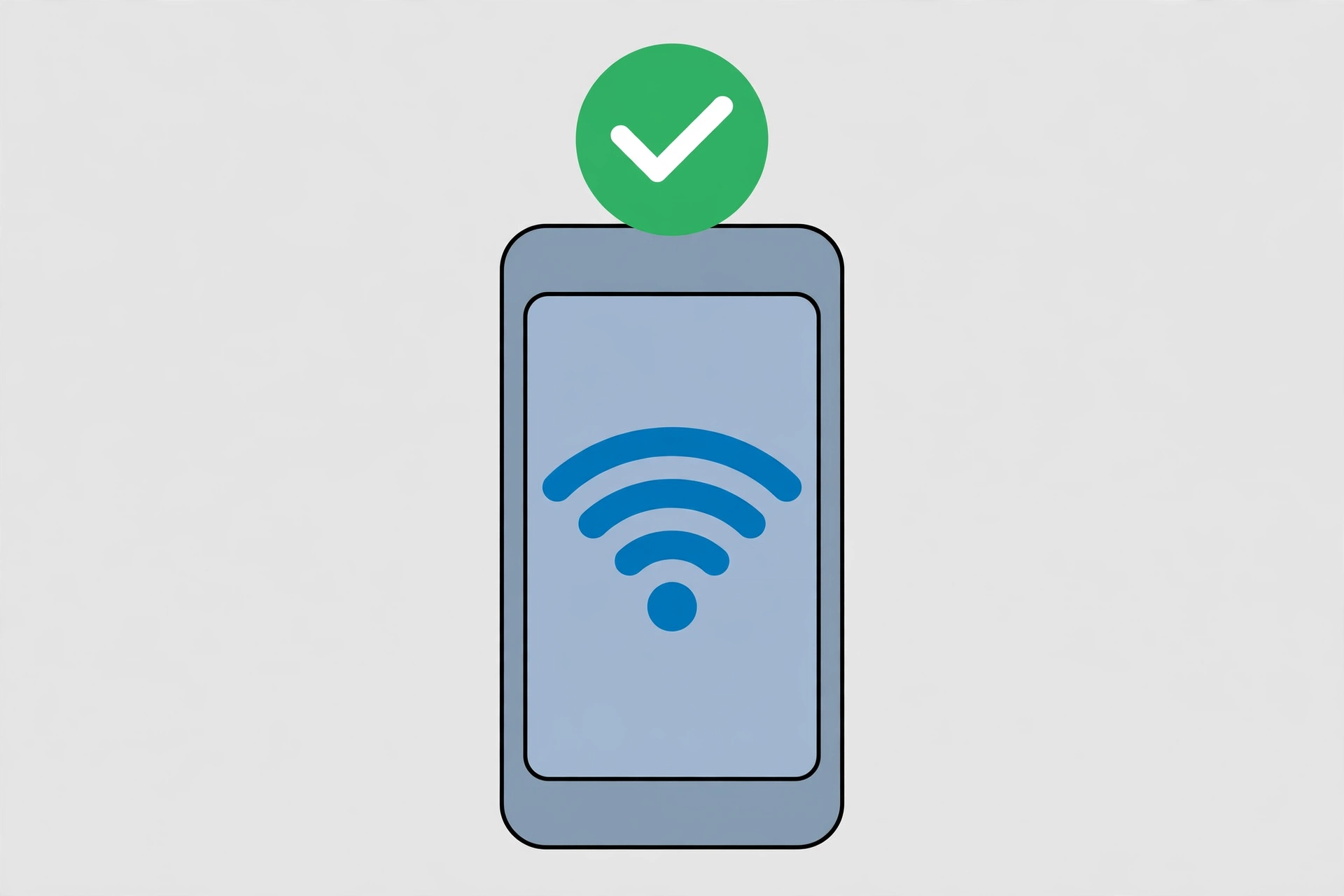
CPM’s login needs a stable connection — a weak signal fails silently instead of telling you. Switch between WiFi and mobile data and try again. Toggle airplane mode on for ten seconds, then off. If the Play Store loads fine but CPM still refuses, your internet isn’t the problem — move to Fix 2.
Fix 2 — Use the Right Login Method (The #1 Cause)
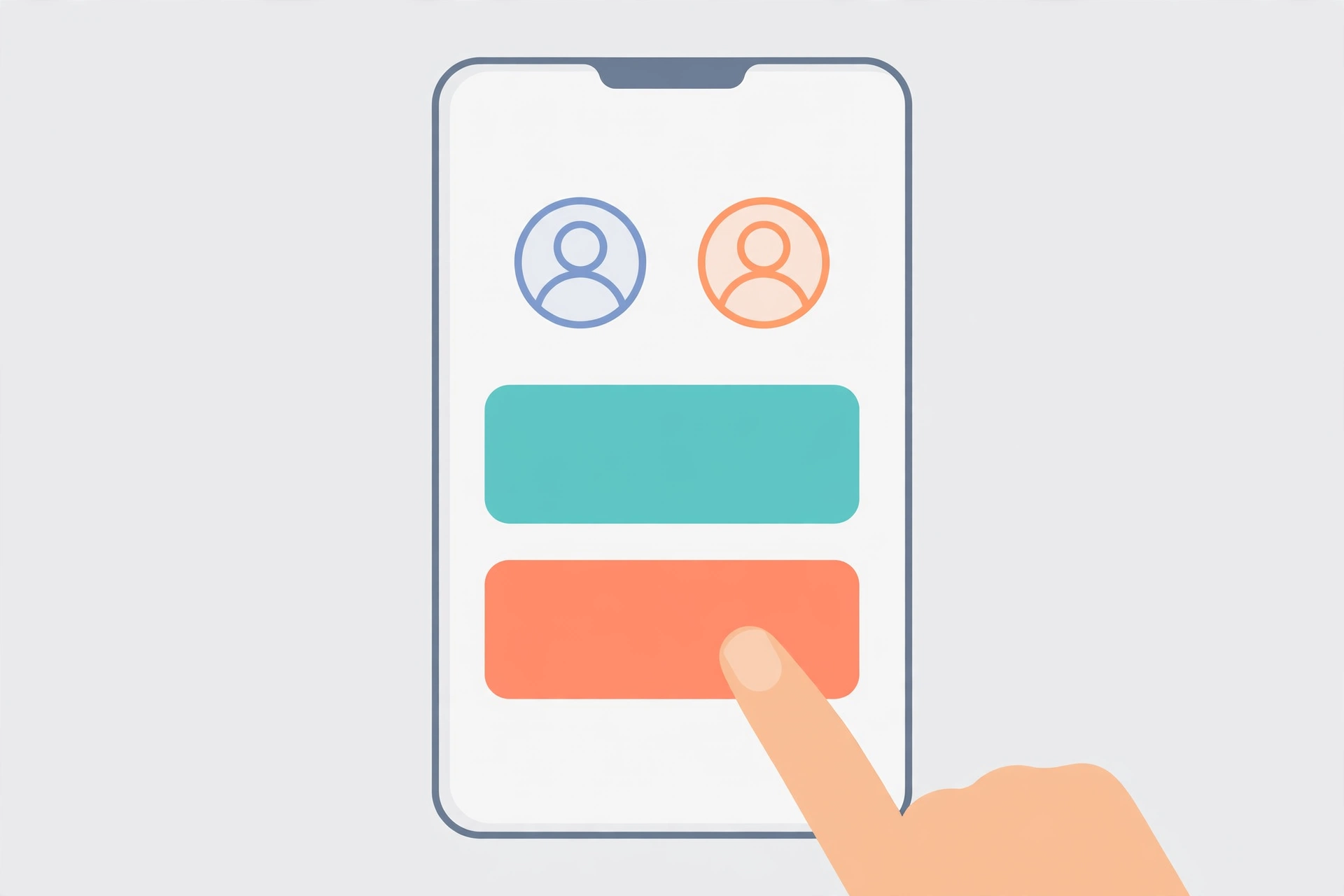
This is where most people go wrong. If you created your account with Google, you must tap Google again — Facebook won’t find it, and Apple sign-in won’t either. And if you always played as a guest, there is no login that can succeed: guest mode never created an account in the first place.
Think back to day one: which button did you press? Try each method exactly once and watch what happens. If one of them drops you into an empty, fresh account, that’s a different login — back out and try the next one.
Fix 3 — Update to the Latest Version
Old versions get locked out when the servers move on. The current version is v4.9.11 — if yours is older, download the latest version from our homepage. After updating, give the first launch a full minute; big updates rebuild game files and start slower the first time.
Fix 4 — Clear the Cache (Not Data)
A corrupted cache can break the login handshake even when everything else is fine. Go to Settings → Apps → Car Parking Multiplayer → Storage and tap
Clear Cache. This deletes temporary files only — your account and progress stay put. Do not tap Clear Data: that wipes guest progress and settings.
Fix 5 — Reset Your Password or Re-link Your Account
If your social login broke (it happens after app updates), unlink and re-link it. On Android, open your Google account settings, find connected apps, remove Car Parking Multiplayer, then log in again from inside the game so it reconnects cleanly. If you registered with an email, use the “forgot password”
option on the login screen and check your spam folder for the reset mail.
Fix 6 — Check Whether the Servers Are Down
Sometimes it genuinely isn’t you. When the developer runs maintenance, everyone gets login errors at once. Check the game’s official social pages or a site like Downdetector — if others are complaining too, put the phone down and wait an hour. Tapping “retry” fifty times won’t speed it up. (If the game logs in but then crashes, that’s a different problem — see our black screen fix guide.)
Fix 7 — Reinstall as a Last Resort (Back Up First)
A clean install clears whatever broken file is blocking you. But first: back up your CPM account, because uninstalling wipes guest data off the phone. Uninstall fully, restart the phone, install the latest version fresh, then log in with your original method. Your progress should sync back.
The Hard Truth About Guest Accounts
Played as a guest, got a new phone (or reinstalled), and now you can’t get your garage back? I’ll be straight with you: that progress is almost certainly gone. Guest data lives only on that one device — no cloud copy exists. The lesson costs nothing going forward: link every account to Google or Facebook the day you create it, and you’ll never be locked out like this again.
Frequently Asked Questions
I logged in with Google but my cars are gone. New empty account?
You almost certainly used a different Google account than the original — or you first registered with Facebook or as a guest. Log out and try your other Google accounts one by one.
Login fails on mobile data but works on WiFi. Why?
That’s your carrier or DNS getting in the way, not the game. Try WiFi, or switch your mobile DNS to a public one (like 8.8.8.8) in your phone’s network settings.
Can support recover my lost guest account?
Honestly, no. Guest progress exists only on that device. If the phone was reset or the app reinstalled without a linked login, there’s nothing for support to restore.
Does the MOD APK cause login failures?
Often, yes. Modified builds can fail the server’s login checks, especially right after an official update. The official version logs in the cleanest — if you use a mod, keep it on the newest build.
Final Words
Most car parking multiplayer login failed cases end at Fix 2 — the wrong button is a shockingly common mistake. Work through the list in order: right method, solid connection, latest version. And whatever you do today, link that account before you close the game.