
How to Fix Black Screen in Car Parking Multiplayer (2026)
Quick Answer
If Car Parking Multiplayer shows a black screen or crashes on startup, restart your phone first. Then clear the game’s cache (Settings → Apps → Car Parking Multiplayer → Storage → Clear Cache). Still stuck? Update to the latest version (v4.9.11), free up at least 4 GB of storage, and only reinstall as a last resort — after backing up your account.
You tap the Car Parking Multiplayer icon, the screen goes black, and… nothing. No logo, no menu — just a dead screen. Or the game opens for two seconds and kicks you straight back to your home screen.
Annoying, but here’s the good news: the car parking multiplayer black screen is almost never a broken game. It’s usually your phone choking on old cache files, an outdated version, or simply running out of room. The seven fixes below go from quickest to most drastic — most players are back in the game by fix three.
One honest note first: black screens hit MOD APKs harder than the official version, because modified files don’t always match what the game expects. The fixes still apply, but if crashes keep coming back on a modded build, the official version is the steadier choice.
Table of Contents
Why Does Car Parking Multiplayer Show a Black Screen?
Short version: the game can’t finish loading. The usual culprits are corrupted cache files left by an old version, an update that didn’t install cleanly, or less than 3–4 GB of free storage (the game itself is over 2 GB). A phone below the minimum specs, a MOD APK built for an older game version, or too many background apps eating RAM can cause it too.
Fix 1 — Restart Your Phone
Sounds too simple, but a restart wipes temporary memory glitches that stop games from launching. Hold the power button, restart, then open CPM before launching anything else. If the black screen is gone, you just saved yourself ten minutes.
Fix 2 — Clear the Game’s Cache (Not Data)
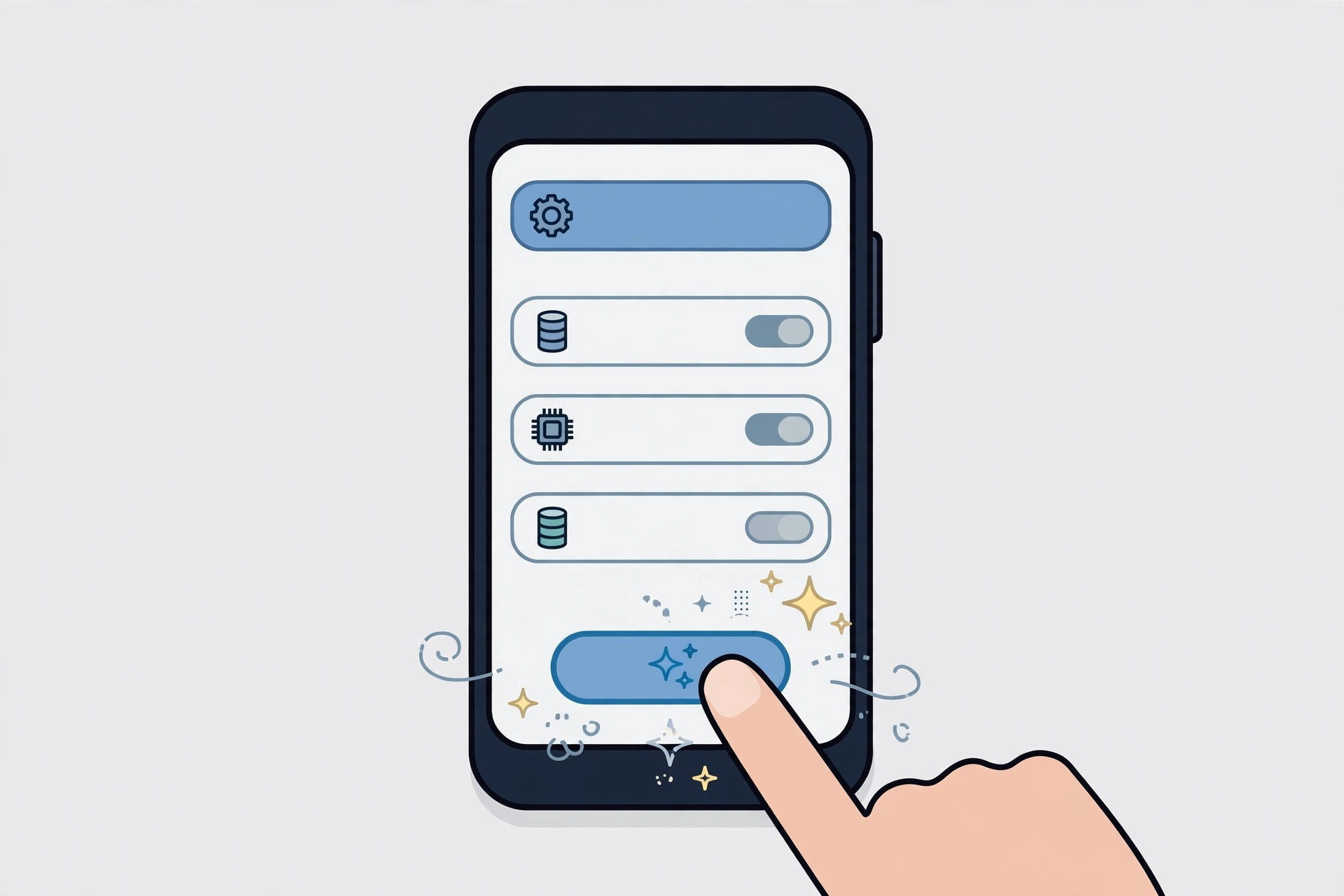
Old cache files are the number one cause of a black screen right after an update. Clearing them is safe — it doesn’t touch your cars, money, or account.
- Open Settings → Apps → Car Parking Multiplayer.
- Tap Storage (or Storage & cache).
- Tap Clear Cache.
- Relaunch the game.
Important: tap Clear Cache, not Clear Data. Clearing data wipes guest progress and settings.
Fix 3 — Update to the Latest Version
An old version talking to updated game servers is a classic recipe for a black screen. The current version is v4.9.11 — if yours is older, grab the latest version from our homepage. After updating, give the first launch a full minute: big updates rebuild game files, so it starts slower the first time.
Fix 4 — Free Up Storage Space
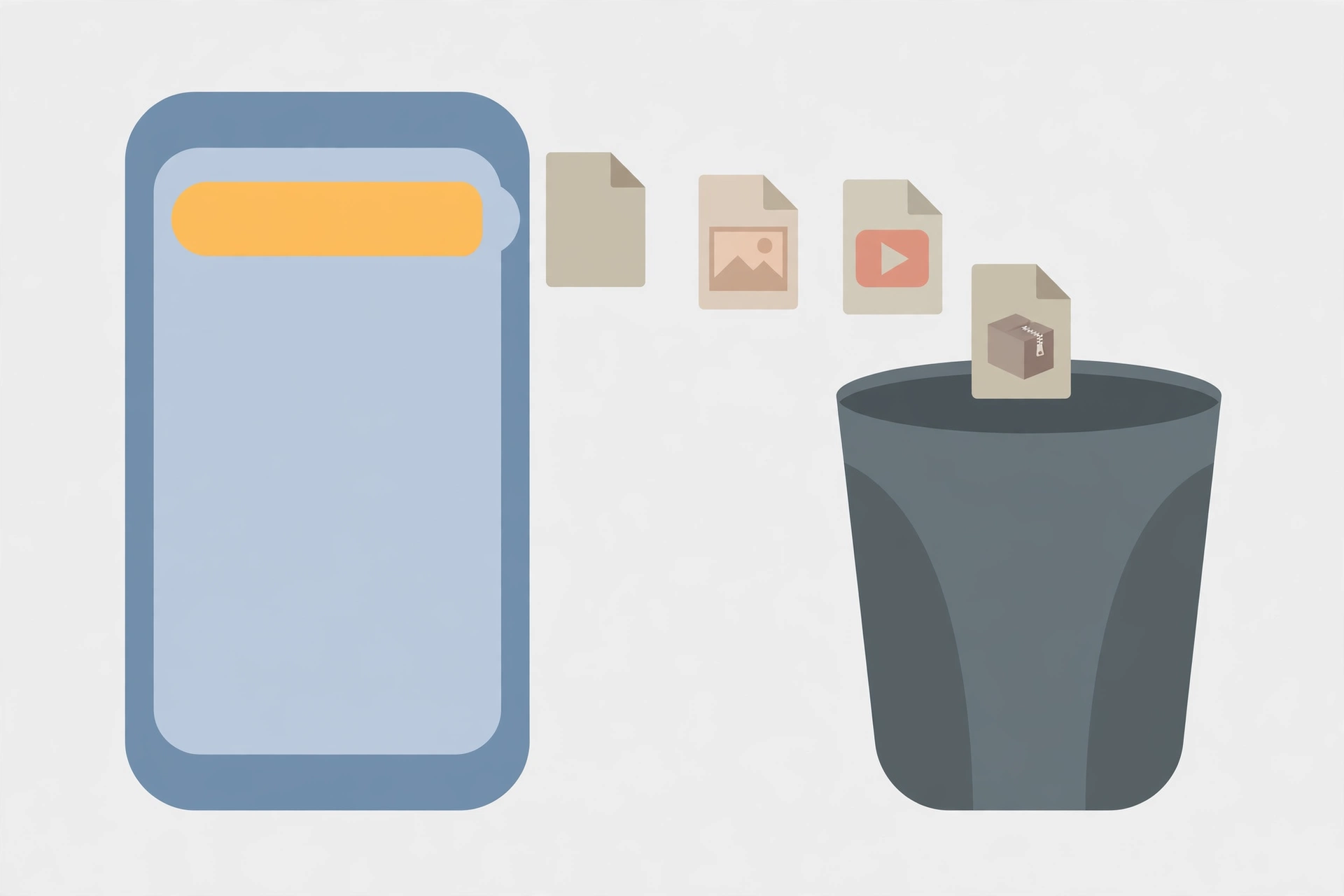
CPM is a 2 GB+ game and needs breathing room to unpack updates. With less than 3–4 GB free, it can freeze on a black screen mid-load. Delete apps you don’t use, clear old WhatsApp media, or move photos to cloud storage — then try the game again.
Fix 5 — Check Your Device Meets the Requirements
A phone below the minimum specs will struggle no matter what you do. CPM needs Android 7.1 or higher and a fair amount of RAM — compare your device against the full system requirements for Android and iOS. On older phones, dropping the in-game graphics settings (if you can reach the menu) helps too.
Fix 6 — Close Background Apps
Chrome with twenty tabs, TikTok, an active WhatsApp call — RAM-hungry apps running behind CPM can crash it on launch. Swipe everything away from the recent-apps screen and try again. This fix helps most on phones with 3–4 GB of RAM.
Fix 7 — Reinstall the Game (Last Resort)
If nothing above worked, a clean install removes whatever broken file is stuck in the mix. But first: back up your CPM account, because reinstalling wipes guest data. Uninstall the game fully, restart your phone, install the latest version fresh, then log back in — your progress should sync.
A Quick Note on MOD APKs
Modified versions crash more often. That’s the trade-off for unlocked content. If the black screen only happens on the modded build while the official version runs fine, the mod file itself is the problem — not your phone. Either grab a freshly updated mod build or switch to official for stability.
Frequently Asked Questions
Will clearing the cache delete my cars and progress?
No. Clearing cache only removes temporary files — your cars, money, and account stay untouched. Just don’t tap “Clear Data”, because that one does erase things.
Why does the black screen keep coming back after every update?
Updates sometimes leave cache files from the older version behind. Clear the cache right after every update and it usually stops repeating.
The game worked yesterday — why a black screen today?
Something changed overnight: an update installed badly, your storage filled up, or the servers moved on while your app stayed old. Start with Fix 2 and Fix 3.
Can a black screen get my account banned?
No. A black screen is your device failing to load the game — not cheating. Bans come from modified online behavior, not from crashes.
Final Words
Nine times out of ten, the car parking multiplayer black screen comes down to stale cache or an outdated version — Fixes 2 and 3 solve it. Go in order, don’t skip the boring ones, and you’ll usually be driving again in under ten minutes.
Restart your phone
Clear the game’s cache via Settings → Apps → Car Parking Multiplayer → Storage → Clear Cache
Update the game to the latest version v4.9.11
Free up at least 4 GB of phone storage
Check your device meets the minimum requirements (Android 7.1+)
Close all background apps
Reinstall the game as a last resort after backing up your account
Can’t log in at all? See: Car Parking Multiplayer Login Failed: 7 Fixes (2026)